Variables
Manage variables
|
|
Item bank managers can enable variables for item content, which randomizes text such as names and numbers in the stem and response options. A list of approved 'replacements' are added for each variable which are randomly selected during exam delivery.  In a given item, the same replacement value is used for each variable.
Once variables are added by the item bank manager, authors can add them to the item content.
Add a variable
- On the Manage variables page, click Add variable in the upper-right corner of the page.
- The Add variable modal opens on the right side of the page.
- Choose one of the following:
- Choose new name: Type a new variable name that describes the set of replacements you will be using (for example, "Name").
- Variable names cannot have blank spaces or special characters. Only alphanumeric characters and underscores are allowed.
- Use existing name: Select Use existing name to create a different property and set of replacements for an existing variable name.
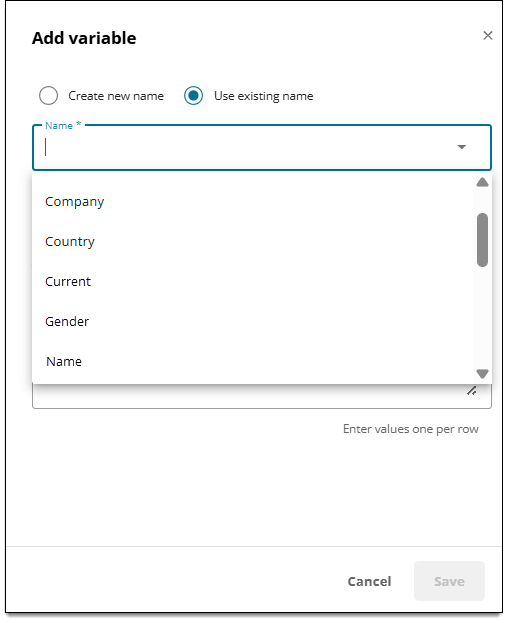
- Choose new name: Type a new variable name that describes the set of replacements you will be using (for example, "Name").
- In the Property field, type a property value. This separates similar values from one another. For example, you can have two "Name" variables, each with different properties such as "First" or "Last".
- Property names cannot have blank spaces or special characters. Only alphanumeric characters and underscores are allowed.
- In the Add replacements field, type replacement options for the variable, with each replacement on a separate line. You can add or edit replacements later.
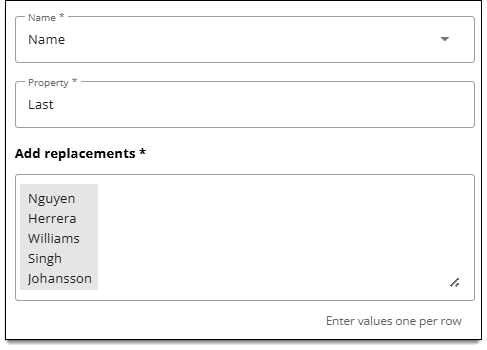 In a given item, the same replacement value is used for each variable. For example, if "Sally" is randomly selected for the first.name variable in item 123456, "Sally" will be used wherever the first.name variable is present in item 123456. This rule also applies across items that are part of a case (when cases are exported as sections). So "Sally" would be used for the first.name variable in all items that are part of a given case/section.
- Click Save.
- The variable is now active (it can be added to item content in the Authoring editor).
Edit variables
- On the Manage variables page, find the variable in the list.
- Type the variable name in the search bar if needed.
- Click the variable name to open the details.
- On the Attributes tab, you can modify properties or replacement values for the variable.
Change a variable's status, name, or property
- Click the Status menu and choose a new status for the variable.
- When Active, the variable can be added to item content by authors.
- When Inactive, the variable is hidden from authors and cannot be added to new items (the variable will still be used in items where it has already been added).
- In the Variable name field, type a new name for the variable.
- This replaces the current variable name; it does not create a new name.
- The variable name will also be updated in the Authoring application (authors will see the new variable name, including in items that already use the variable).
- In the Property field, type a new value for the property. You can also edit the variable's replacement values as described below ↓.
- This replaces the current property name; it does not create a new name.
- The property name will also be updated in the Authoring application (authors will see the new variable name, including in items that already use the variable).
Add, edit, or delete replacement values for a variable
- On the Manage variables page, find the variable in the list.
- Type the variable name in the search bar if needed.
- Click the variable name to open the details.
- On the Attributes tab, you have several options:
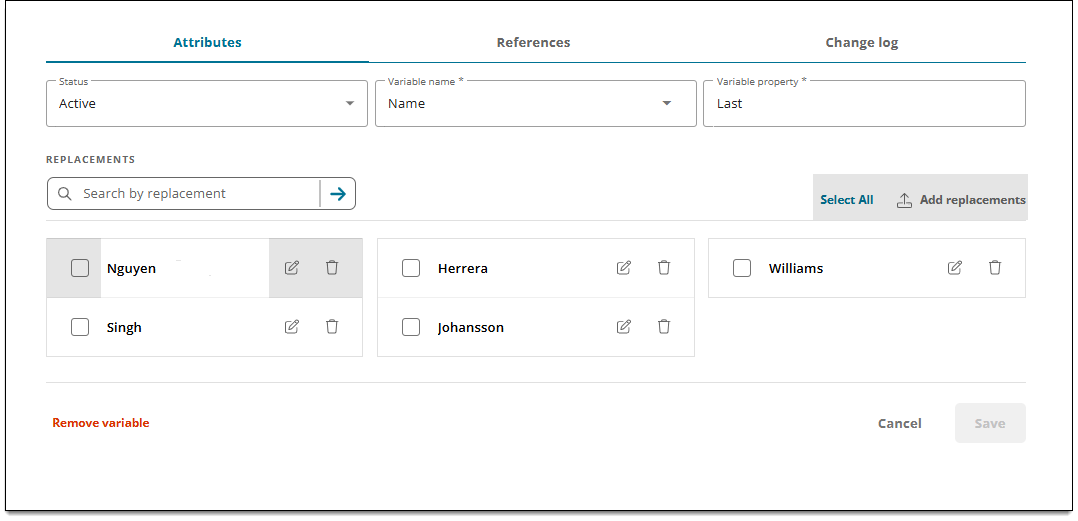
- Add new replacement values: Click
 Add replacements, then enter each new variable on a separate line in the side panel.
- Edit existing replacement values: Click
 for the desired variable. This opens an editable text field where you can change the replacement value.
- Delete replacements values: Click
 for the desired replacement. This removes the replacement from the variable and it will no longer be selected during delivery when the variable is used in an item.
- Delete multiple replacements: Click Select all (or select two or more replacements), then click Delete selection.
- Add new replacement values: Click
- Click Save.
Remove a variable that is not in use
|
|
- On the Manage variables page, find the variable in the list.
- Type the variable name in the search bar if needed.
- The Used column shows if a variable is used in an item. If this value is Yes, you won't be able to delete the variable unless you remove it from all of the items where it is currently being used ↓.
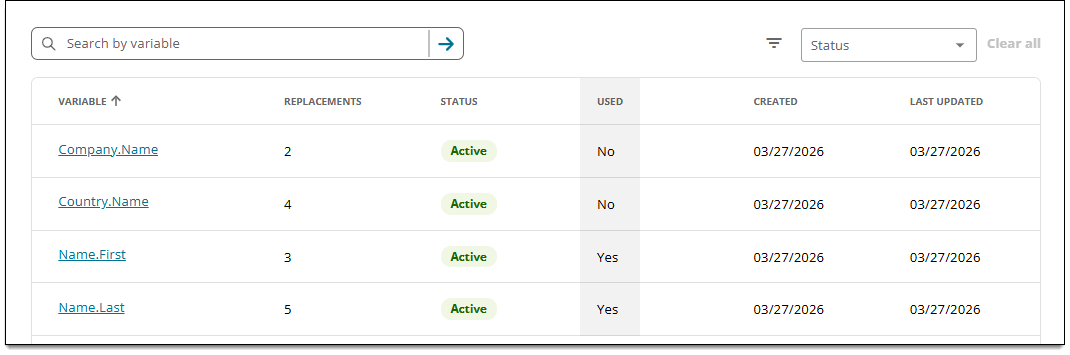
- Click the variable name to open the details.
- On the Attributes tab, click Remove variable in the lower-right corner.
- Click Yes in the confirmation window.
See where an item is being used
If you want to remove a variable from a project but it is currently used in items, you can view a list that shows where that item is currently used. This will identify which items need to be updated to remove the reference to the variable.
- On the Manage variables page, find the variable in the list. The Used column shows Yes if a variable is used in an item.
- Click the variable name to open the details.
- Click the References tab. (This tab will be shown only when the variable is currently in use.)
- A list of items where the item is currently used is displayed. The associated project name is also displayed.
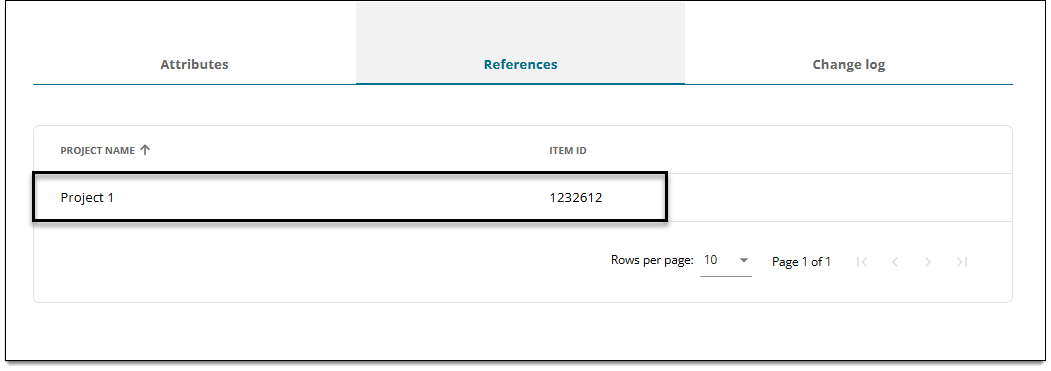
- You can now edit the items in the Authoring editor to remove the reference to the variable. Once the updated items are saved, you can remove the variable.
View previous versions of a variable (change log)
- On the Manage variables page, find the variable in the list.
- Type the variable name in the search bar if needed.
- Click the variable name to open the details.
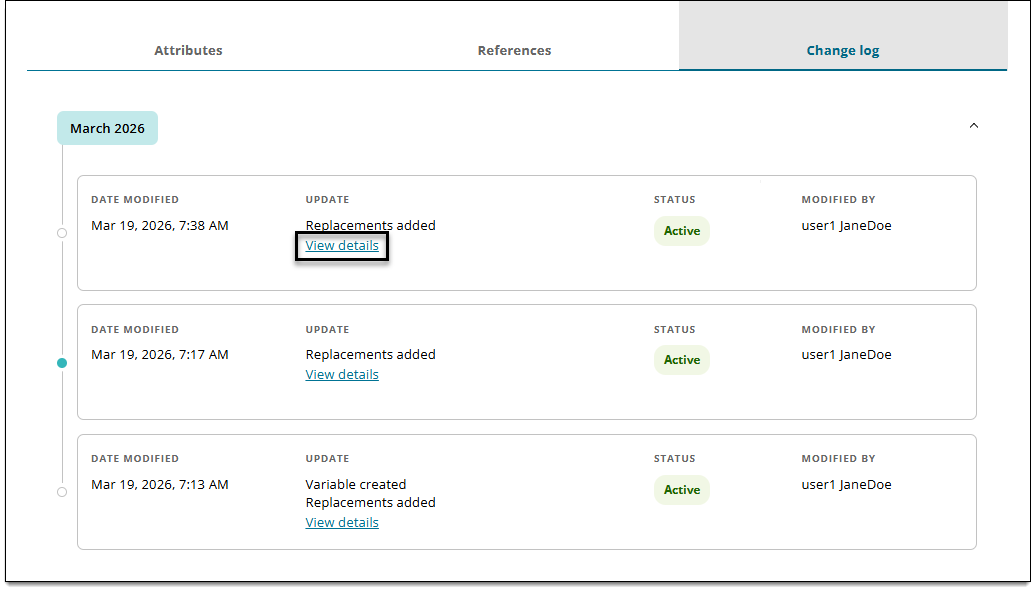
- Click the Change log tab.
- All changes made to the variable and its replacements can be viewed from this page. Changes are grouped by month (the month in which the change was made). You can view changes such as Variable created, Variable updated, Replacements added, etc.
- Click View details for an entry to review the specific changes that were made. For example, the details for a Replacement edited variable will show the previous version of the value alongside the modified version of the value.
Pearson Proprietary and Confidential